.png?height=120&name=sonovate%20logo%20copy-01%20(1).png)
Everything you need to know about Sonovate's Time & Materials (Outside IR35) solution
Quick links
- Placement checklist
- How to add a Time & Materials (Outside IR35) placement
- Contracts
- Timesheets
- Invoicing
- Payments
Placement checklist
Everything you need to add a placement into your account with ease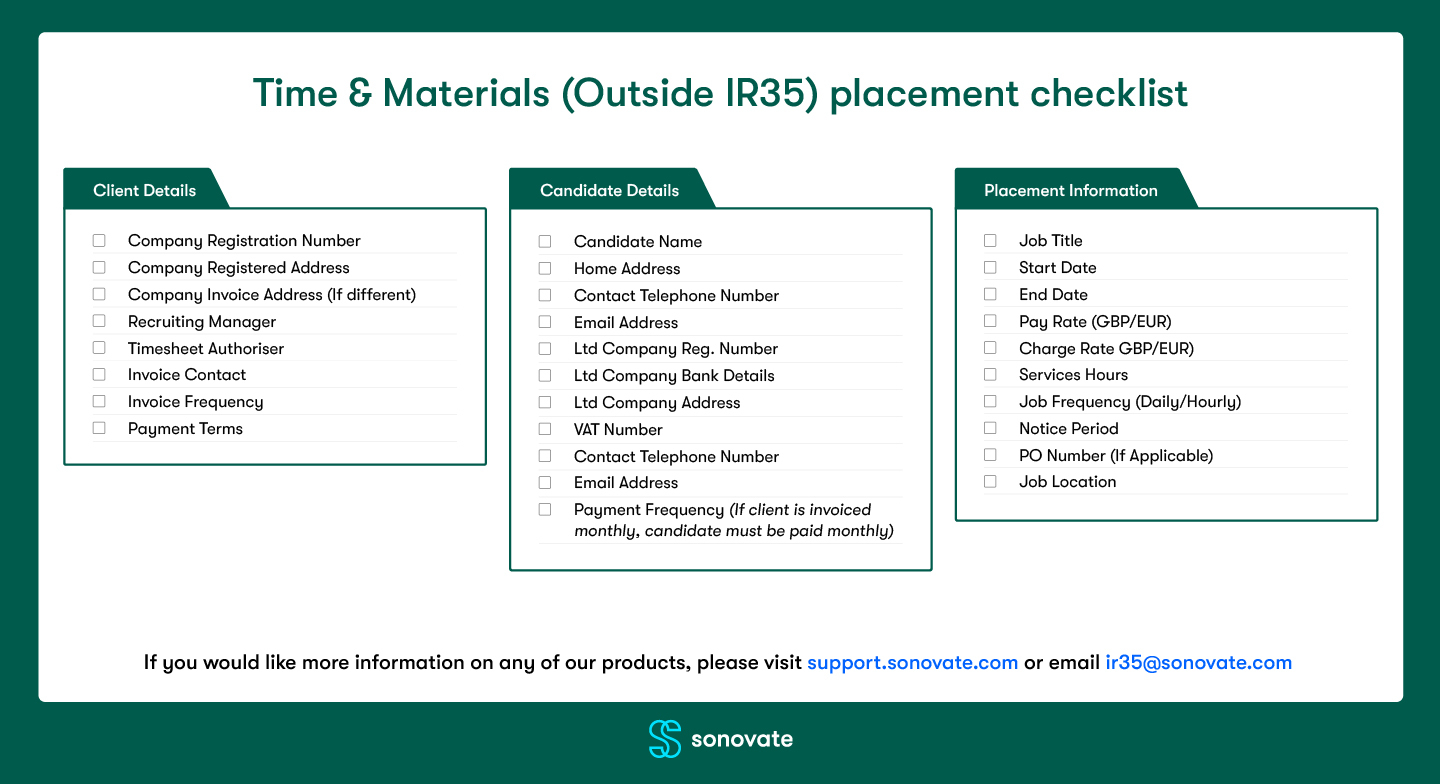
How to add a Time & Materials (Outside IR35) placement
Step one: add client information
Step two: add candidate information
Step three: add role information to the placement
Step by step process
- Please use the ‘+ Add Placement’ button as you usually would when submitting a placement.
- Input all the usual Company / Client details as normal.
- Input all the usual Candidate details as normal.
- Input the Project Title in the ‘Job Title’.
- Select the relevant start & end dates according to the project.
- Select the ‘Job Location’ as you normally would.
- Select the relevant currency for payment conditions.
- The ‘Rate Title’ will need to be the ‘Deliverable Title’.
- You must select the relevant units (hours or days)
- Please input the pay & charge rates that apply.
- Please input PO number if applicable.
- Please ensure you input the correct client payment terms.
- Select payment frequency.
- Input the notice periods.
- Please then ‘Submit’ the placement.
- Sonovate can then initiate the placement approval process.
At a glance process

Contracts
Who issues the contracts?
- Your business is responsible for sending contracts to clients and candidates.
How to issue contracts
Contract templates
- You have three contract template options:
- Sonovate’s contract template, without amends
- Sonovate’s contract template, amended to include extra terms
- Your own contract pre-signed contract. (Note: before this contract can be used it needs to be reviewed and approved by Sonovate.)
You have the option to use either Sonovate terms or your own for any given placement.
How to upload your own contracts
- Click 'Agency Admin' from the main navigation
- Select 'Contract Templates'
- Upload client or candidate terms
- Placements will now default to pre-selected terms
How to upload a signed contract
- Click 'Placements
- Select 'Requires contract issue'
- Click 'Contracts'
- Click 'edit' below 'Do you have any amendments to make to the terms?'
- Upload & use a signed contract
- Upload PDF and click 'Finished'
Contract Schedule
When you issue a contract out from the placement to either your client or candidate, the placement will auto populate a schedule. The schedule pulls information from the placement itself and affixes to the contract.
The creation of the schedule is now optional. You can submit any contract (either a Sonovate template or your Agency’s own contract template) with or without the Schedule.
How to add or remove a schedule on a contract
Timesheets
Online timesheets
- Candidates will need to submit their timesheet for online approval to the client.
- Timesheets will need to be signed by 12pm midday on the Tuesday for payment the following Friday.
Manual timesheets
- We will require an approved timesheet sent to timesheets@sonovate.com by 12pm midday on a Tuesday for payment the following Friday.
- The approval must arrive directly via email from the client.
Invoicing
- Client invoices will be issued as usual on a Thursday.
- Sonovate invoices will be issued as usual on a Thursday.
- Candidate invoices are issued to the LTD Company as a ‘Self Bill Invoice’. Please be mindful that in order for the placement to be deemed ‘Outside IR35’ you may wish to organise the candidate to issue you (the agency) their own invoice as well.
Payments
- Sonovate will issue the candidate’s pay to the umbrella as usual – clearing on a Friday.
- Sonovate will issue you your agency margin as usual – clearing on a Friday.