.png?height=120&name=sonovate%20logo%20copy-01%20(1).png)
Everything related to PAYE here
Click here to our PAYE New Worker Registration Portal
- PAYE set up
- Placement checklist
- How to add a PAYE placement
- New starters
- Contracts
- Timesheets
- Invoicing
- Candidate holidays
- Payslips
- Pension
- Leavers
- HMRC
- Queries
- Payments
- Reports
- Calculator
- Documents and links
PAYE set up
What are the steps we need to go through to setup our account ready to fund PAYE placements?
- Register with HMRCs PAYE scheme
- Complete Sonovate’s new agency form
- Select a pension provider (if you already use a provider, great, we'll just need a few details)
How do we register with HMRCs PAYE scheme?
- Find out more here
- Sonovate can set up a scheme for your business for a fee - please contact paye@sonovate.com for a quote.
Why do we need to register with HMRCs PAYE scheme?
- It's a legal requirement to be enrolled in HMRCs scheme. However, it's nothing to be worried about. Being registered ensures your tax affairs are kept neat and tidy.
How long does the registration process take?
- It can take up to five working days for HMRC to respond, so we recommend getting this set up 1-2 weeks before you want to fund a PAYE placement through your account.
Why do I need to complete Sonovate's 'new agency form' as well?
- HMRC require different information to Sonovate. The details you provide on our form ensures your account is setup perfectly to fund PAYE placements.
Placement checklist
Everything you need to add a placement into your account with ease
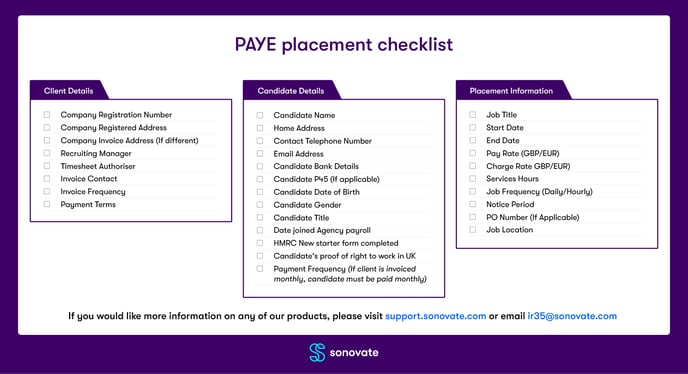
How to add a PAYE placement
Getting setup to add PAYE placements
- You will need to let our PAYE department know that you have PAYE placements to fund. Please email paye@sonovate.com
- Once you are set up for payroll you can submit a PAYE placement.
- You will also need a copy of your candidate’s P45 or a ‘New Starter form’ filled in to refer to. (Click here for more info on the new starter process and forms).
Step by step process
- Login to your account
- Please use the ‘+ Add Placement’ button as you usually would when submitting a placement.
- Input all the usual Company / Client details as normal.
- Input all the usual Candidate details as normal, selecting ‘PAYE’ as the contractor type.
- Input the ‘Job Title’.
- Input ‘LTD Deductions’ into the Job description.
- Select the relevant start & end dates according to the contract.
- Select the ‘Job Location’ as you normally would.
- Select the relevant currency for payment conditions.
- Select the relevant rate type (i.e. Hourly, Daily)
- Input the pay and charge rates
- Please input PO number if applicable.
- Please ensure you input the correct client payment terms.
- Select payment frequency.
- Input the notice periods.
- Please then ‘Submit’ the assignment.
- If you have a P45 for your candidate, please send it to us via our from here - PAYE New Starter Registration
- Sonovate can then initiate the placement approval process.
Please note: if you are switching an existing candidate who is known in the system as "LTD", you will need to create a new contact record for the candidate but as a PAYE contact.
If you have any questions on how to do this, please contact customerservices@sonovate.com
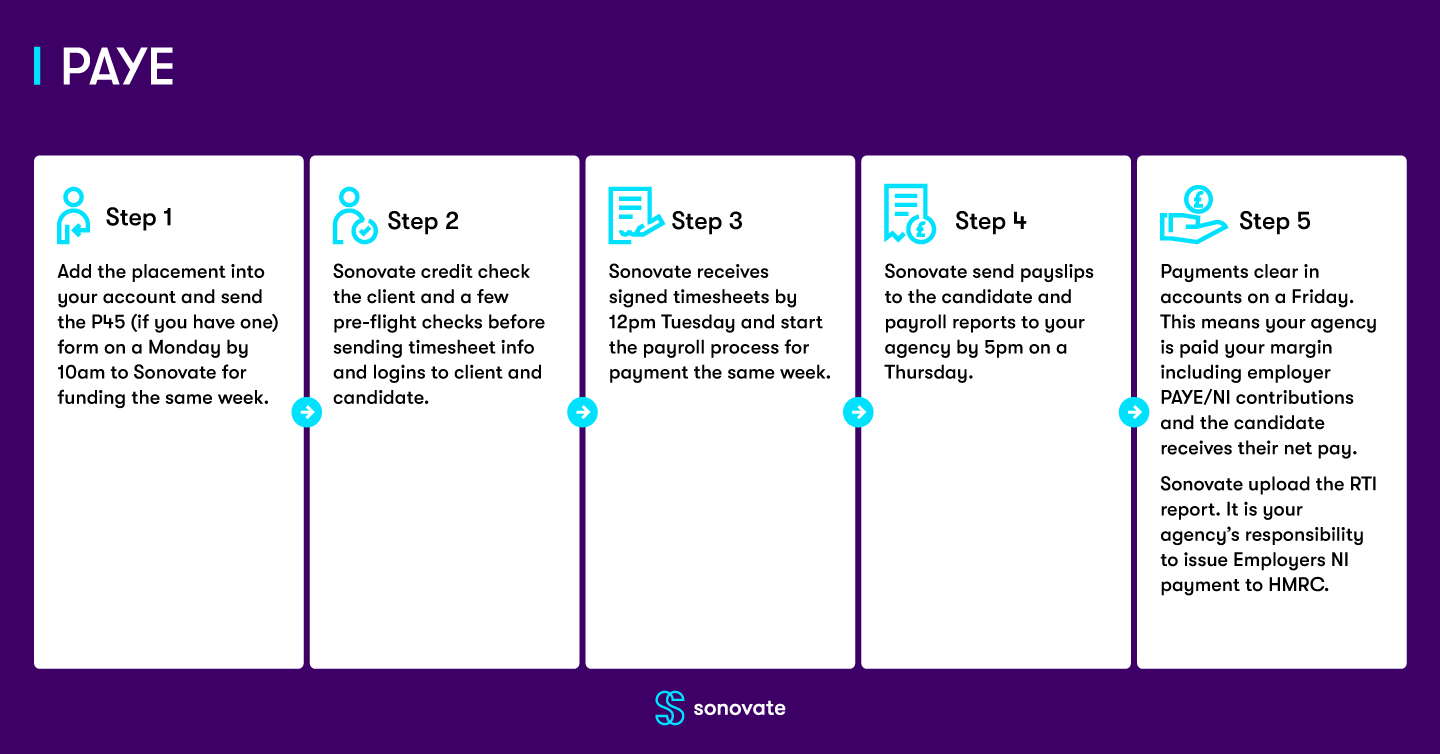
At a glance process
New starters
What do I need to set up a New Starter?
- The candidate will need to complete HMRCs PAYE Starter Checklist form. See below for form options
- Online form: HMRCs PAYE Starter Checklist
- PDF: HMRCs PAYE Starter Checklist
- a copy of their P45, if applicable.
Do I complete the new starter form for every candidate?
- Yes
What do I do with the New Starter Information?
- When submitting your PAYE placement, you will be asked to populate the contents of the HMRC PAYE Starter checklist form when inputting your candidate details.
- If you have a P45 for your candidate, you will need to upload it here.
Without the P45 your candidate may be processed on an emergency tax code.
Contracts
As you are the employer of your PAYE contractor, contracts for PAYE placements will need to be issued by you the agency and are not stored on your Sonovate account or on the placement itself.
Timesheets
Online timesheets
- Candidates will need to submit their timesheet for online approval to the client.
- Timesheets will need to be signed by 12pm midday on the Tuesday for payment the following Friday.
Manual timesheets
- We will require an approved timesheet sent to timesheets@sonovate.com by 12pm midday on a Tuesday for payment the following Friday.
- The approval must arrive directly via email from the client.
Invoicing
- Client invoices will be issued as usual.
- Sonovate invoices will be issued as usual
Candidate holidays
How is holiday accrued?
- If a candidate receives the standard 20 days plus 8 bank holidays, they accrue holiday at 12.07% of the hours worked.
- Click here to use Gov.UK holiday entitlement calculator
- More on holiday entitlement from Gov.UK
How many holidays has the candidate accrued?
- Please check the most recent payslip sent to your agency.
- Under ‘employee details’ it will show the holidays remaining in hours.
How does the candidate submit holidays?
- Candidate submitting online timesheets
When the candidate is completing their timesheet they need to select ‘Annual Leave’ pay rate.
- Candidate submitting manual timesheets
Your agency will need to email timesheets@sonovate.com detailing what holiday is to be processed. Please note: this needs to be submitted by the 12pm Tuesday deadline as per normal.
Do candidate holidays affect our margin?
- Yes, the 'cost' of candidate's taking holidays will be charged to your margin, so please factor this in when negotiating charge rates with your clients.
Payslips
When will the candidate(s) receive their payslip?
- Payslips will be emailed to the candidate(s) by Thursday 5pm.
- A password will be sent to the candidate(s) with their first payslip from Sonovate.
- The password will be the candidate's NI number. For e.g. QQ123456C
Example payslip

Pension
What pension provider should I be using?
- We recommend you look at pension providers for your business, unfortunately we are unable to give advice on this.
Who is responsible for creating my pension account?
- Your pension provider is responsible for creating your account.
- However, Sonovate can assist you with setting up your pension account for £100 +VAT
When does the candidate start contributing to a pension?
- You need to instruct us whether you would like to postpone your candidates for the first 3 months. Then they will start contributing 5% and the agency will contribute 3% on earnings above £118 up to £962.
Can a candidate opt out of pension verbally?
- No, candidates must opt out of pension via the pension provider.
Leavers
What is the process when a candidate leaves my agency?
- Firstly, please end the placement early on the portal on the last day the candidate works. To do this, enter the placement record and click 'finish early'.

- Email customerservices@sonovate.com to let us know if Sonovate need to organise holiday pay and a P45.
HMRC
Who is responsible for making payments to HMRC?
- Your agency is responsible for making sure payments are sent to HMRC each month.
- Sonovate will issue a P30 to you at the end of each tax month which instructs you the amount that needs to be paid, and where to pay it and how to reference it.
What's the deadline for payments?
- The payment deadline for each month is the 19th.
Queries
Where do I send my queries and amendments to be made?
- All queries and amendments to be sent to customerservices@sonovate.com
- The team will action queries in line with our shared SLA
Payments
- Sonovate will issue the candidate’s pay as usual.
- Sonovate will issue you your agency margin (including Employers NI) as usual.
- It is your agency’s responsibility to pay deductions to HMRC.
Reports
When and how will my agency receive the PAYE summary report?
- When: each Thursday
- How: you’ll receive an email with a PDF attachment containing a full PAYE summary report for that week.
Example report summary

Calculator
Punch in some numbers to calculate key PAYE figures.
Documents and links